Four Years in the Basement: Building Our E-Ink Family Calendar
Like many people, I have a TODO list of pet projects that keeps getting longer, and one of my long-time project has been to replace the paper calendar on the fridge. My goal was simple, I really like having a physical calendar visible from the breakfast table. It helps to casually remind me of things and has helped me avoid embarrassing situations like being late for a school field trip or forgetting that it's my turn to bring the class' "healthy snack". The disadvantage of the standard paper calendar is of course that it sits at home. This means I need to remember to add events to it when I learn about them when I'm not home, and I can't check it when booking things. So to summarize, my business requirements were:
- physical calendar prominently visible from my breakfast station
- updatable while on the go
- accessible while on the go
I thought about using a calendar on my phone or on a tablet, but I really wanted the calendar to be visible without having to take any active steps. I know myself, I can confidently convince myself that there is nothing important and not look at the calendar. It has to be displayed at all times. In order to guarantee this, while also being easy on the power consumption I decided to go for an e-ink display, and looking around I found a nice combination of devices which I ordered. That was in March 2023.
Getting it all out.#
This brings us to the weekend of the 31st of October 2026, when after finally painting the last walls of our house and emptying the basement; I finally felt comfortable picking up this project where I had left it almost four years earlier. I convinced my 11-year-old to give me a hand, and we opened the dust-covered box in the basement.
| Part | What it does |
|---|---|
| Waveshare 12.48" e-Paper Module (B), 1304 x 984 | The screen: black, white and red. Keeps its image with zero power. |
| Raspberry Pi Zero W (v1.1) | The brain. Tiny, slow, but it has Wi-Fi. |
| PiSugar 3, 1200 mAh | Battery under the Pi, plus a real-time clock that can wake it up. |
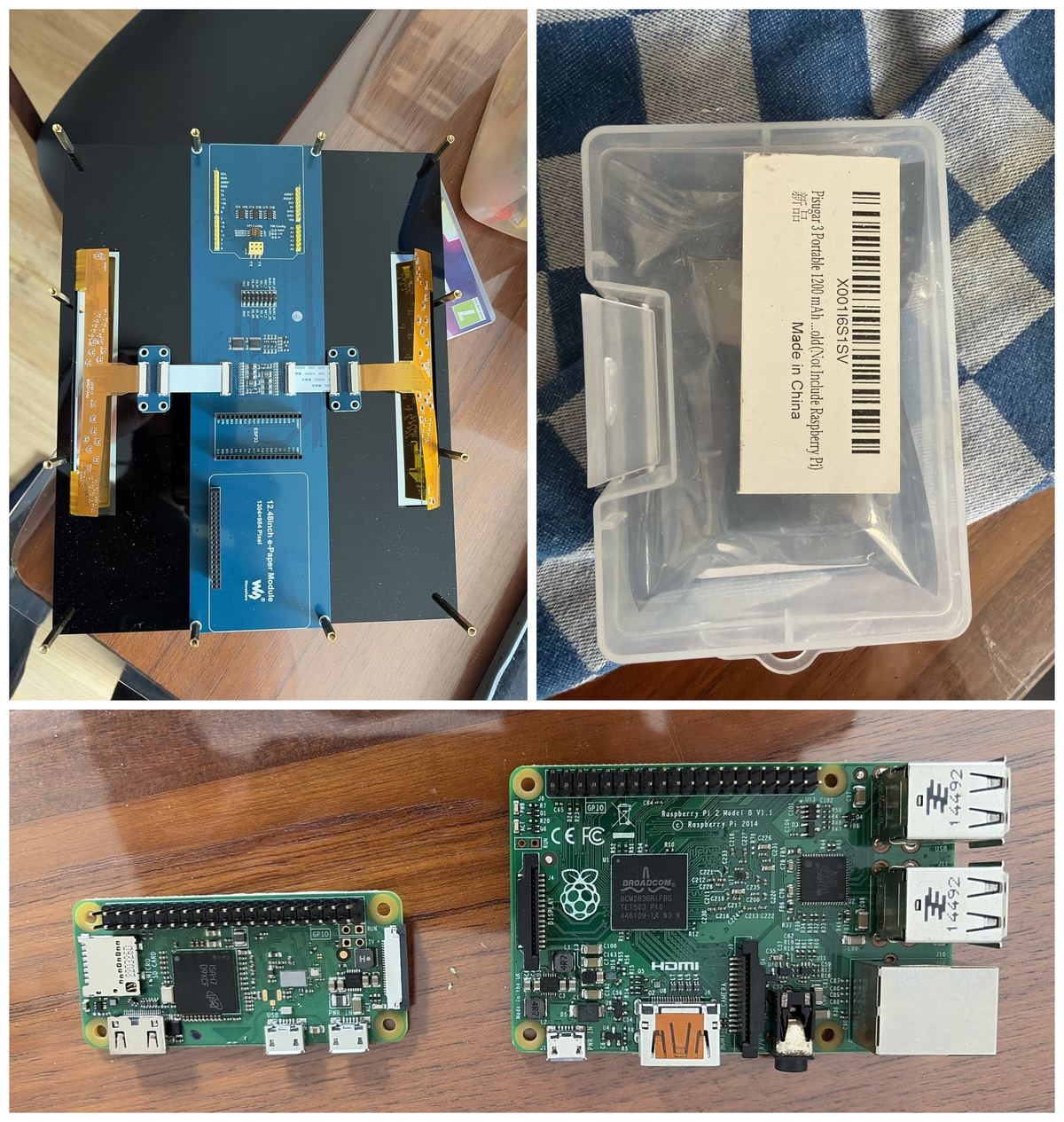
Four years of patience, unboxed.
I selected the Waveshare at the time because of its size (it's actually 4 panels put together) but also its ability to display both black and red. I felt it would allow some creativity on how to make sure the right information catches the eye. A full refresh takes about 37 seconds according to Waveshare's own specs, and it blinks dramatically while doing it.
Sunday afternoon: from SD card to first pixels#
The first hour was spent setting up the Raspberry. Creating a disk image using Raspberry Pi Imager on the Mac, Raspberry Pi OS Lite, Wi-Fi and SSH set in advance, and five minutes later a steady green LED. My son typed ssh for the first time and was "inside the Raspberry Pi". We named it otocal for Otomate and calendar!
Then came the good part: the bugs!
- The SPI trap. We enabled the Pi's SPI interface, as you would for most screens. The test script answered with a wall of
xGpioHandleRequest: Invalid argument. This driver does SPI "by hand" on the GPIO pins, and the kernel's SPI driver was squatting on them. We switched SPI off again. - Ancient Python. Next error:
module 'time' has no attribute 'clock'. The demo still callstime.clock(), which Python 3.8 removed. A quick pass through Claude and we upgraded the script to be compatible with Python 3.14. - The first image. No errors, lots of blinking, and about two minutes per image on the little Zero. Straight, complete, and with red in it!
The calendar comes alive#
Before writing a line of code, we imagined what it would look like: the next four weeks, a zoom on today and tomorrow, birthdays in red, holidays as bars. If we still had time, a "phrase of the day" and a weather indicator. A couple of prompts later we had a first idea.
I created a technical account on my self-hosted Nextcloud for the family calendars to live on (one per family member). So the Pi reads it over CalDAV with the caldav Python library. A few choices kept it simple and safe:
- An app password, dedicated and stored in a secret file.
- Initials instead of colours. The screen has three colours, not one per person, so each family member's calendar gets a short prefix like
AB ·. - Tiny fixes. Duplicate events (one in a personal calendar, one in the family one) are skipped, anything starting with "Anniversaire" turns red, and all-day events display without a start time.
A refresh takes about two minutes, so the drawing code first saves a PNG preview, which we can copy to the Mac with scp to inspect. Only when the preview looks right does it go to the real screen. The first real render, our actual family weeks, was a genuinely great moment.
Cutting the cord#
The screen holds its image without power, so the Pi does not need to stay awake. The plan: wake up, fetch, draw, refresh, set the next alarm, and power off completely.
- Finding the PiSugar.
i2cdetectshowed addresses 57 and 68: the PiSugar and its clock were talking to the Pi. - Locking it down. The PiSugar Power Manager opens a web dashboard and a command port to the whole network by default. We removed the web UI and bound the command port to
127.0.0.1only. - A clock stuck in 2020. The battery's clock had never been set. One
rtc_pi2rtccommand fixed that, and every cycle now resyncs it. - One alarm, three wake-ups. The clock holds a single alarm, like an old bedside clock. So each run sets the next one: 06:00, then 11:30, then 18:00, then 06:00 again.
- Keep it on. A Pi that powers itself off after four minutes is hard to work on. If a file named
RESTER_ALLUMEexists, or the battery is charging, it stays on.
Then the scary test: alarm set five minutes ahead, Pi off, fingers crossed. It woke up on its own, drew the calendar and went back to sleep. Victory!
Monday, 5 a.m.: the polish#
My son left soon after but I kept going to make it just right:
- Weather from Open-Meteo, free for non-commercial use and with no API key. Its weather codes become small icons we draw ourselves out of circles, lines and polygons. The sun and the lightning bolt are red, because we can.
- A joke of the day, picked at random at every wake-up from a text file my son curates.
- A battery gauge in the corner, which turns red below 20%.
- A red frame on today, to quickly draw people's attention.
- Emoji tofu. An event with an emoji drew an empty box. Now a small whitelist maps a few emoji to black-and-white symbols (⭐ becomes ★) and anything else becomes ⚠.
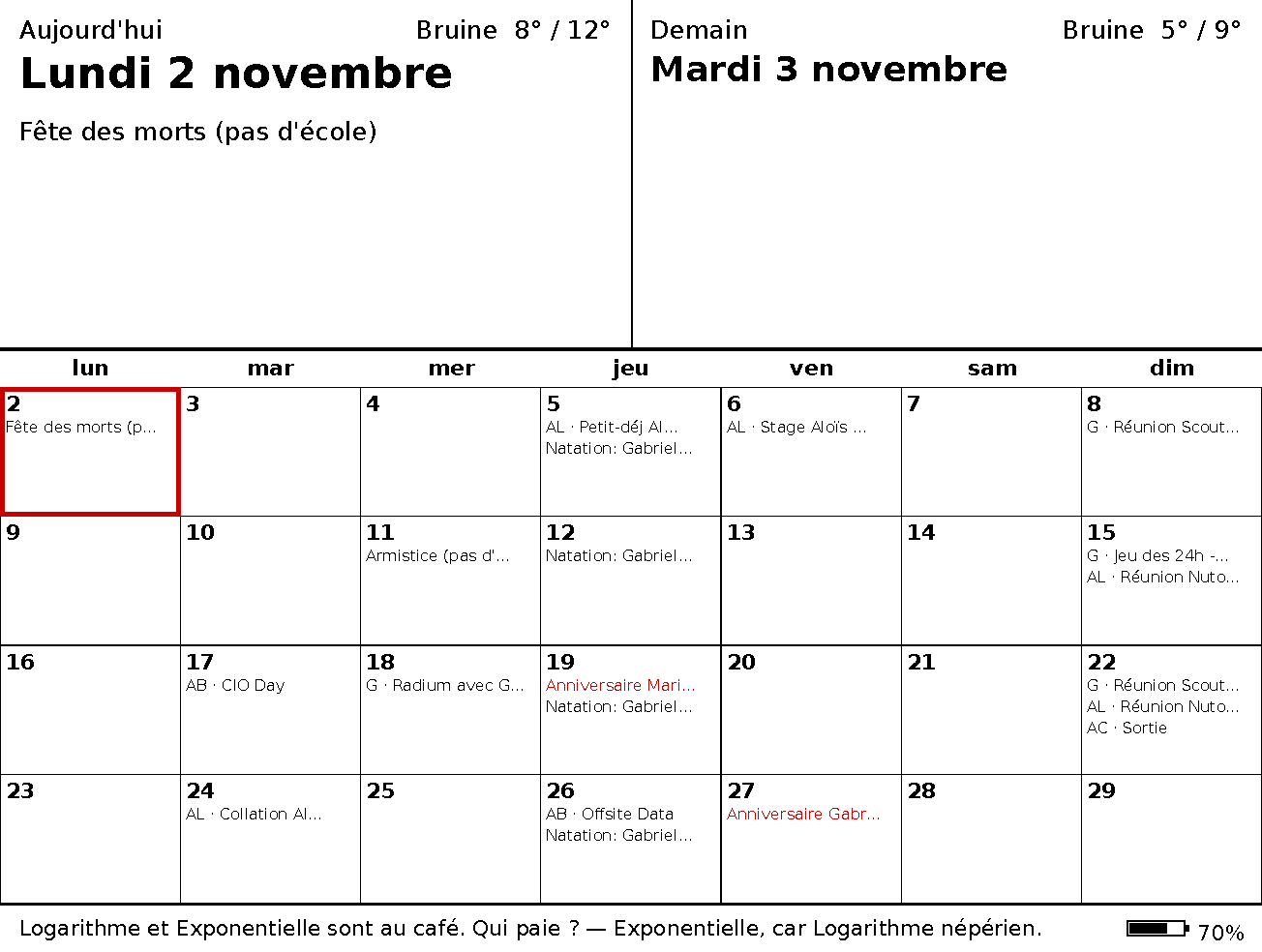
The latest preview.
What's next#
Next up: measure the battery drain per cycle, check that the PiSugar truly cuts power when the Pi is off, and maybe swap the bit-banged SPI for hardware SPI to shorten each refresh. But honestly? It already works. It's on the table, it wakes itself up three times a day, and it tells us a joke.
Finally#
First thing my son did coming downstairs was to look at the calendar to read the joke of the day. At the same time, I gave the calendar a quick glance. No more forgotten events!